Before you begin setting up your Logitech G27 wheel for rFactor, you should look at the page on installing and configuring rFactor and rFactor modifications. You should have already created your user profile before you set up your G27 wheel.
These setting should apply to most of the popular Logitech wheels including the Driving Force GT, G25, and G29.
After you get your user profile created by clicking the helmet icon and filling out the information, you’ll want to configure your controller. I use a Logitech G27 wheel which is a very popular controller, so I’m going to describe my configuration which you can use and modify to your personal liking.

Logitech G923 Racing Wheel & Pedals
One of the most popular entry-to-mid level sim racing wheels available today. The G923 delivers strong TRUEFORCE feedback up to 1000 Hz that lets you feel the road with refreshing clarity, a responsive brake pedal with progressive spring, and a solid set of pedals built for consistent control. It includes a programmable dual-clutch launch system for cleaner starts, a genuine leather-wrapped wheel, and straightforward compatibility with PC, Xbox Series X|S, and Xbox One.
Buy on AmazonAffiliate link • Ships fast from Amazon
Logitech G27 Settings in Windows
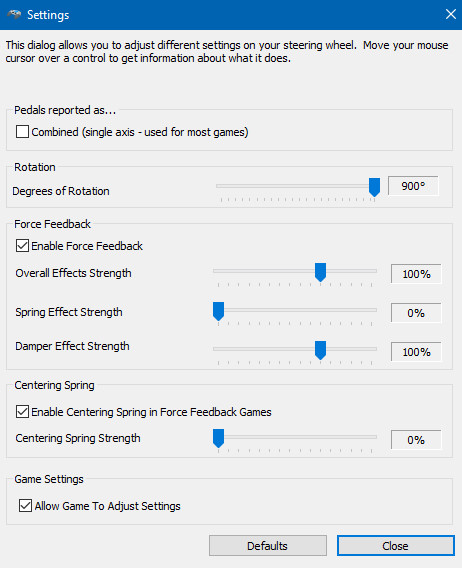
Here are my Logitech G27 Windows settings for rFactor. Your settings window may look slightly different but all the settings should be there.
I set my Degrees of Rotation at 130° as that feels comfortable to me. I would say that anywhere between 120° and 270° should work okay, depending on your preference.
You can experiment with these settings, but I recommend leaving the Spring Effect, Damper Effect, and Centering Spring at 0%. The overall effects strength can be set to 100% to 105%, it’s not a big deal. I sometimes turn the force feedback off entirely and turn up the centering spring to about 35%. This feels very smooth and the centering spring helps bring the wheel back to center if you get turned around.
Logitech G27 Settings in rFactor
The screen depicted below is accessed by clicking the gear icon near the top middle, then CONTROLS. This is the setting screen in a DirtWorks Designs mod. Yours may look different but you should be able to find all the same settings.
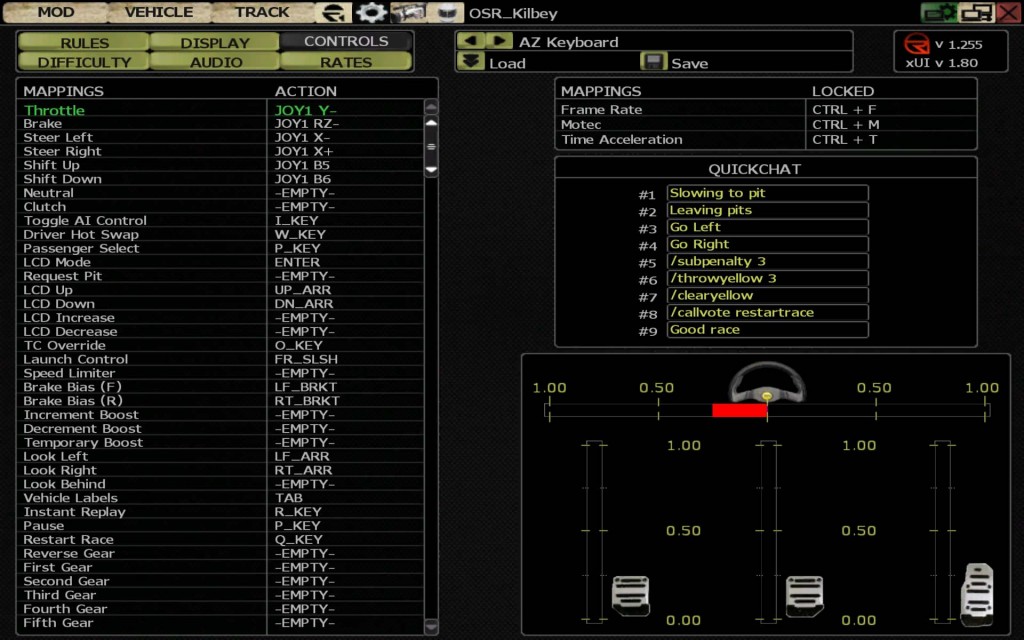
This is where you’ll find your key and controller mappings. What you want to do is click Throttle, then press your throttle to map the action. It’s pretty simple. Do the same for the brake, steering, shifting, etc. This is how you calibrate your wheel.

Next Level Racing Wheel Stand 2.0
Master your laps without dominating the room. The Next Level Racing Wheel Stand 2.0 stands rock-solid for direct-drive wheels, yet folds away in seconds when real life calls. Full adjustability for wheel, pedals, and shifter lets a man settle into his proper position the honest way. A clever chair cradle keeps your seat planted under hard braking, while predrilled mounts welcome Thrustmaster, Fanatec, Logitech, and the rest. Upgrade later to a full cockpit with the GTSeat add-on. Serious performance, sensible footprint—no compromises required.
Buy on AmazonAffiliate link • Ships fast from Amazon
You can also map keys to the QUICKCHATS you see on the right, and you can change the text of the QUICKCHATS. When you’re finished, click Save above. I saved mine as AZ Keyboard, which is the default name of the controller profile that loads when you load rFactor. I couldn’t get it to load automatically under any other name, so I just set it to the default name.
The next screen you’ll want to look at is the rates screen, accessed by pressing the RATES button.
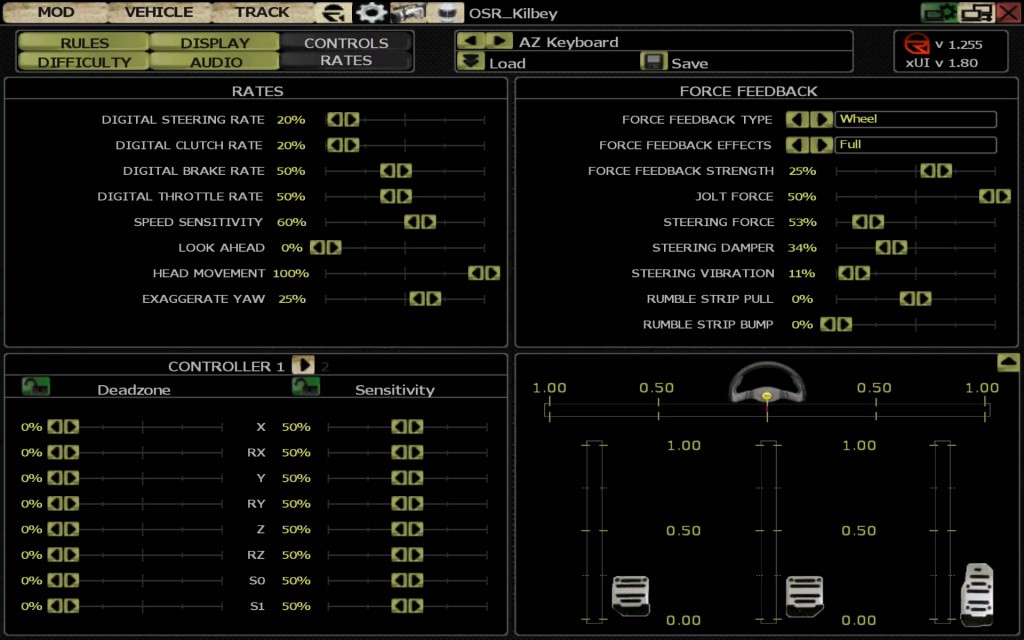
It’s my understanding that the Digital Rates are meant to be used for a keyboard or a controller with buttons (digital meaning either off or on). I’ve experimented with them briefly and they have no effect on my wheel.
The LOOK AHEAD setting is interesting, as it simulates head movement from side to side as the car turns. It says 0% in this image but I actually prefer it around 50%. It’s something to experiment with, and it might take some getting used to if you choose to try it.
I left the CONTROLLER 1 settings at 50%, but you can experiment with the sensitivity and deadzone as you wish.
You can see my FORCE FEEDBACK settings there in the image. This is what I settled on after a lot of experimentation. It seems to work well for the Logitech G27.
Be sure to save your controller profile by clicking the Save button when you’re finished.
That concludes this rFactor Logitech G27 configuration tutorial. I hope it helps. If you have any questions you can find me on the OSR Voice/Text Chat Discord Server or you can contact me here.
Leave a Reply