This tutorial is here to help people get started with the Logitech G29 or G920 racing wheel. The function of these wheels is very similar to the older Logitech G27 racing wheel. You will probably want to take a look at my Logitech G27 Calibration and Settings page also, as there is some information there that you won’t find here.

Logitech G920 Driving Force Racing Wheel & Pedals
This serves as a no-nonsense entry into realistic driving. Dual-motor force feedback delivers honest steering weight and road detail, while the sturdy floor pedals offer progressive braking and smooth throttle. Stainless steel paddle shifters, a leather-wrapped rim, and a full 900-degree rotation create a setup that earns its spot on your rig without needless extras. It works cleanly with Xbox Series X|S, Xbox One, and PC.
Buy on AmazonAffiliate link • Ships fast from Amazon
As I said on my Logitech G27 tutorial, if you like a lot of FFB, or if FFB is very important to you, you might want to try the Thrustmaster TX, the Thrustmaster T500RS or better still, a Fanatec wheel and pedals setup.
I’m going to show you here how I have my G29 racing wheel set up in the Logitech Gaming Software. For the settings that are recommended by iRacing, please refer to my Logitech G27 Calibration and Settings page. Also refer to that page for my racing wheel settings inside the iRacing simulation.
Logitech G29 and G920 Racing Wheel Settings in Windows
- Open your Logitech software for the wheel. There are at least a couple of ways to open this application. One of the easiest ways (in Windows 10 at least) is to click Start, then just start typing ‘Logitech Gaming.’ By the time you get that far you should have at least one clickable link to the Logitech Gaming Software. It will probably say ‘Logitech Gaming Software 8.96.’
- Sometimes a couple of things can happen. If you’re familiar with the software already you know what to do here. Just in case you are not familiar with the software and you’re a little stuck or can’t quite figure out how to get to your wheel settings, read on.
You might see a window like this, maybe showing a keyboard or a mouse.
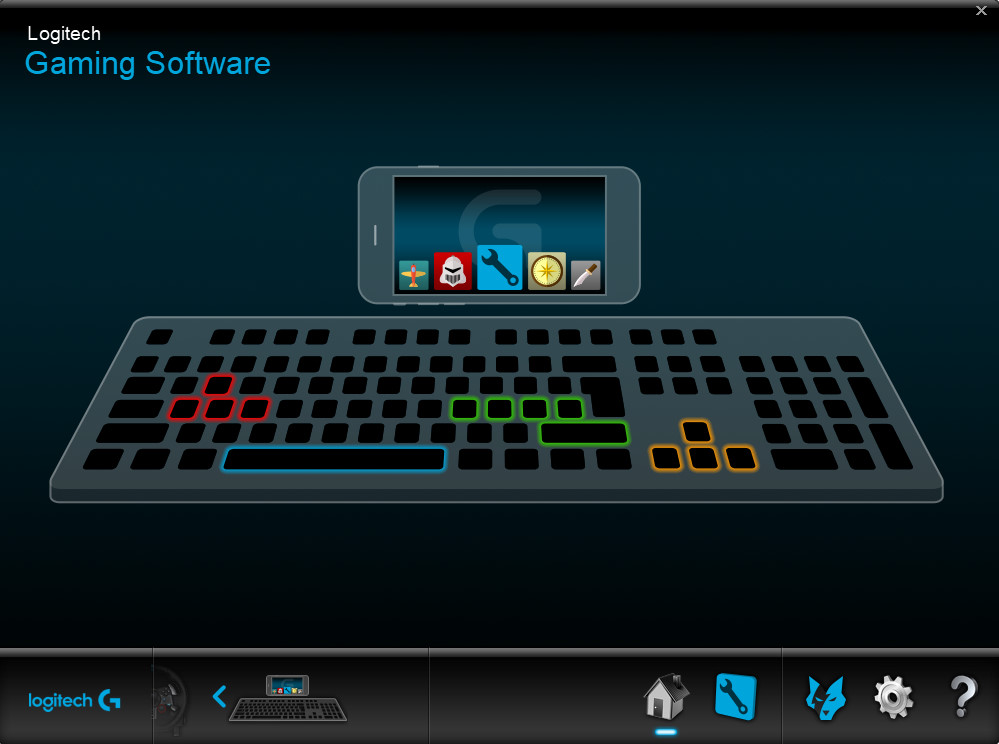
Of course we don’t really want to fool with the keyboard or mouse right now, so click the blue arrow on the bottom left to change the input device. Click it until you see a picture of your wheel. Now we’re in business. - Click one of the highlighted buttons on the big picture of the wheel. Now you should see this.
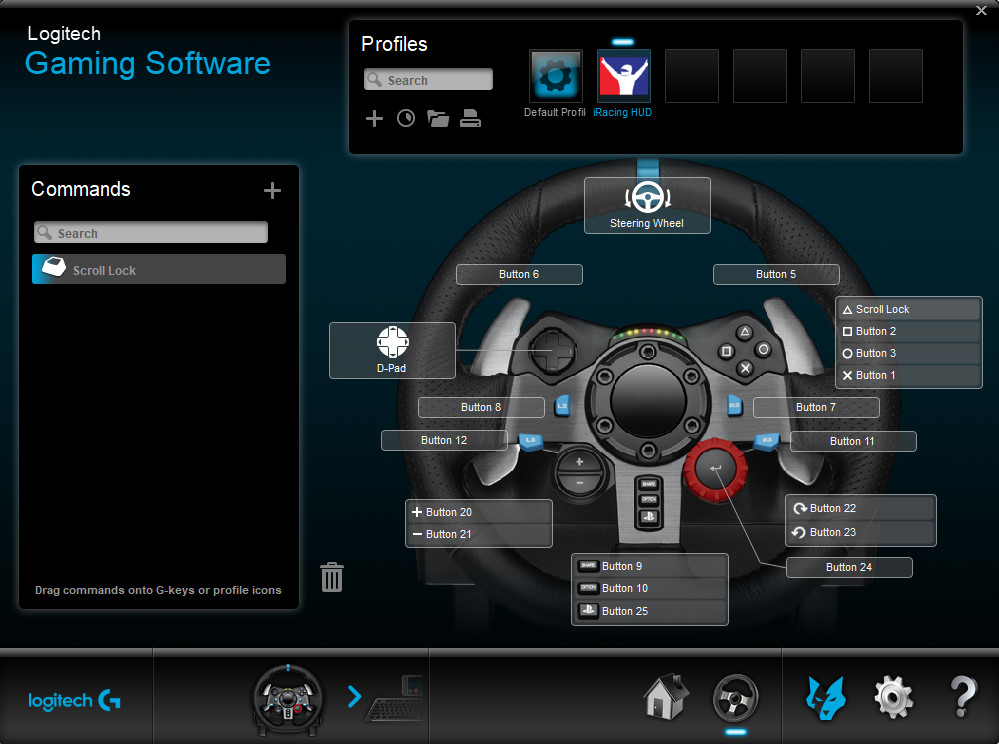
- Make sure iRacing HUD is selected at the top. If you don’t see iRacing HUD, you might try opening the iRacing simulation one time to see if it populates. I really don’t remember how this is set, but I know it was there when I opened the Logitech Gaming Software application.
- Don’t set up the buttons in here. Use the iRacing simulation to do that.
- What you will want to do is double-click Steering Wheel near the top center. That will take you to your actual wheel settings. You will see this.
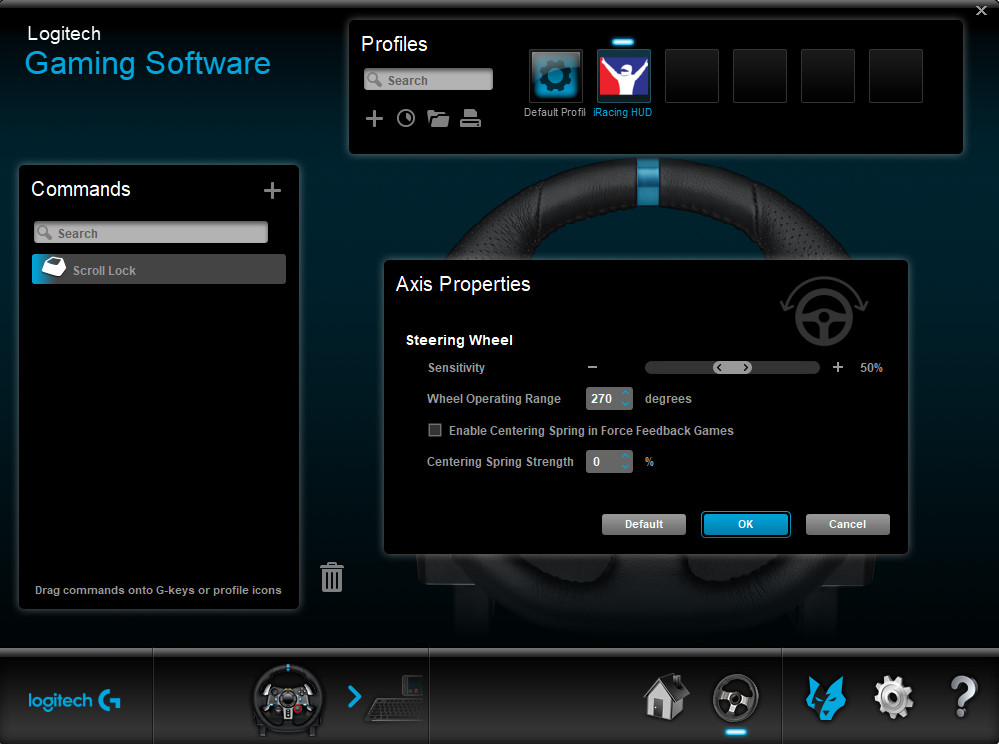
Now that you’re there, you decide how you want your wheel set. I left everything at default except the Wheel Operating Range (rotation). I race almost exclusively on dirt ovals and I find 270° to be a good place for me and it works well on short asphalt ovals as well. It makes the wheel much more sensitive than the 900° that iRacing recommends. For full details on this see the page on my Logitech G27 settings. The software looks different but I also used these same settings on my Logitech G27 racing wheel. I also provide details for the settings I use in the iRacing simulation on my Logitech G27 page.
That’s all I have for this Logitech G29 and G920 iRacing setup tutorial. If you have any comments or questions, feel free to leave a reply below or join me in Discord.
trying to find correct setting for g29 I use in iracing can get it to steer correctly
I have a G920. What settings do you recommend in game? Mine are currently.
Wheel Range 900
Map Range 900
Force Feedback Strength 7.9
Wheel Force 1.0Nm
Damping 100%
Min Force 0.0%
Do I need to change those to 270 as well or will the profiler adjust it accordingly? Thanks for any help.
Your settings are probably good like they are. I used to change mine once in a while. I finally settled on the iRacing recommendation which is what you have in your settings, I believe. The only difference in mine is that I don’t use any force feedback. I race dirt almost exclusively, and most people recommend low FFB on dirt. The thing to do is find something that feels pretty good to you and leave it alone. When you change it, you have to get used to the new setting. Honestly, I don’t really think there’s a wrong way to set up your wheel (within reason). You just need something that is comfortable for you in the type of car(s) you’re racing, and you need to leave it that way so that a lot of the driving becomes a sort of “muscle memory.”
Jeff I got a g29 and at the top 12oclock it’s like a dead spot but really touchy. I can run and only put a inch or two into the wheel and it’s so responsive. Can ya help?
you note to set up the buttons in the iracing platform. is this done under the options menu when going to race?
will the PC pick up the buttons on the wheel in the same fashion it picks up keys on the keyboard?
thanks.
Yes and yes.
I’m new to iracing but i have a G29 and would like to have a button to push on the wheel for tear offs for dirt racing instead of the auto tear offs. i’m not sure how to add that feature. any help
I am new to I racing and I have the thrustmaster pro wheel. In testing my dirt track street stock is good but whe I try to drive the modified or latemodel I can only shift in to first gear. I have paddle shifters only. Can some please explane why I dont get any other gear and how to fix it? Thank you
Most dirt cars ( LM,SC,Mods, Midgets) are only one gear there’s no up or down shifting needed