This tutorial will show you how to download and open iRacing setups in the iRacing simulator. Some very basic knowledge of the Windows operating system is required. If you’re going to be playing iRacing very much at all, you will need to know how to navigate in Windows.
The first thing you want to do, of course, is find a setup that you want to download. This site is the number one iRacing resource for everything including iRacing setups. For this first step, I’ll use this site as an example, but you can download setups from the iRacing Forums or other sites.
Here is the first thing you see when you download a setup from this site:

Next Level Racing Wheel Stand 2.0
Master your laps without dominating the room. The Next Level Racing Wheel Stand 2.0 stands rock-solid for direct-drive wheels, yet folds away in seconds when real life calls. Full adjustability for wheel, pedals, and shifter lets a man settle into his proper position the honest way. A clever chair cradle keeps your seat planted under hard braking, while predrilled mounts welcome Thrustmaster, Fanatec, Logitech, and the rest. Upgrade later to a full cockpit with the GTSeat add-on. Serious performance, sensible footprint—no compromises required.
Buy on AmazonAffiliate link • Ships fast from Amazon
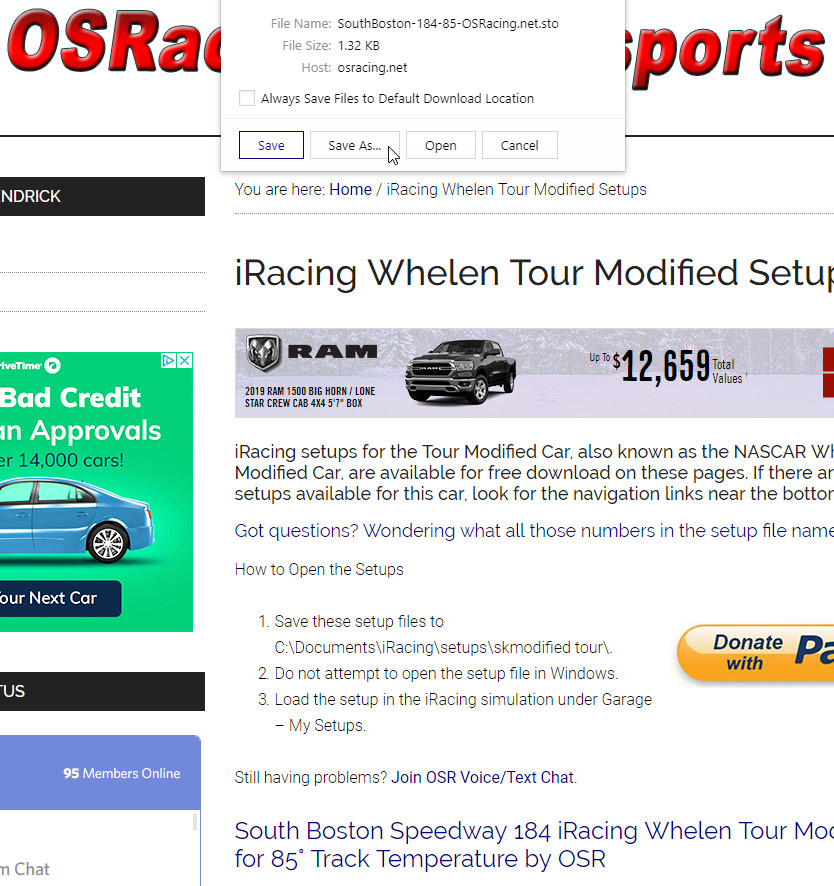
What you see at this point might vary. The image above was captured when I was using a more obscure browser.
This is the only place where the download may get a little tricky if you’re not well versed in Microsoft Windows and web browsers. Different browsers will have different looks, and the action may be different based on the way that you have your browser configured. I’ll try to describe a couple of different scenarios.
At this point, what you want to do is click ‘Save As…’ or something similar that will appear in your browser. Do not click Open. When you click ‘Save As…’ you will open a new dialog that asks where you want to save the file. This is the preferred way to download the setup.
If your browser does not give you the ‘Save As’ option and simply downloads the file to the default download location (usually ‘Downloads’ as shown in the image below, right under ‘Documents’) then you will have to find the setup file in your downloads, then cut and paste the file into the correct location as described below. Briefly, here is how to cut and paste a file.
- Select the file that you want to cut (single click on it).
- Right-click your selected file and choose Cut from the menu. Keyboard shortcut: Hold down Ctrl and press X.
- Right-click inside the destination folder (Documents\iRacing\setups\<carname> in this case — see the instructions below) and choose Paste from the menu. Keyboard shortcut: Hold down Ctrl and press V to paste.
If your browser allows you to choose a location to save the file, use this method. After you click ‘Save As…’, you will see something like this:
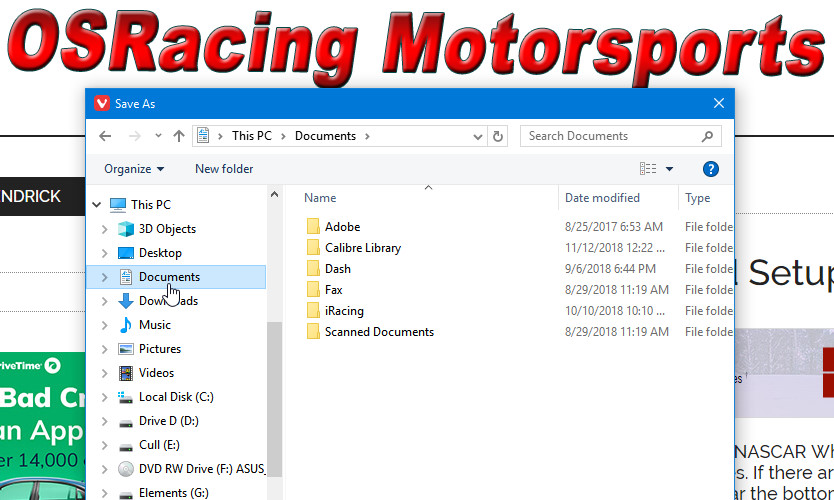
Find ‘Documents’ as shown. Double click it to open the Documents folder. To the right you will see an iRacing folder. Double click it to open the iRacing folder.
Next Level Racing Wheel Stand 2.0
Master your laps without dominating the room. The Next Level Racing Wheel Stand 2.0 stands rock-solid for direct-drive wheels, yet folds away in seconds when real life calls. Full adjustability for wheel, pedals, and shifter lets a man settle into his proper position the honest way. A clever chair cradle keeps your seat planted under hard braking, while predrilled mounts welcome Thrustmaster, Fanatec, Logitech, and the rest. Upgrade later to a full cockpit with the GTSeat add-on. Serious performance, sensible footprint—no compromises required.
Buy on AmazonAffiliate link • Ships fast from Amazon
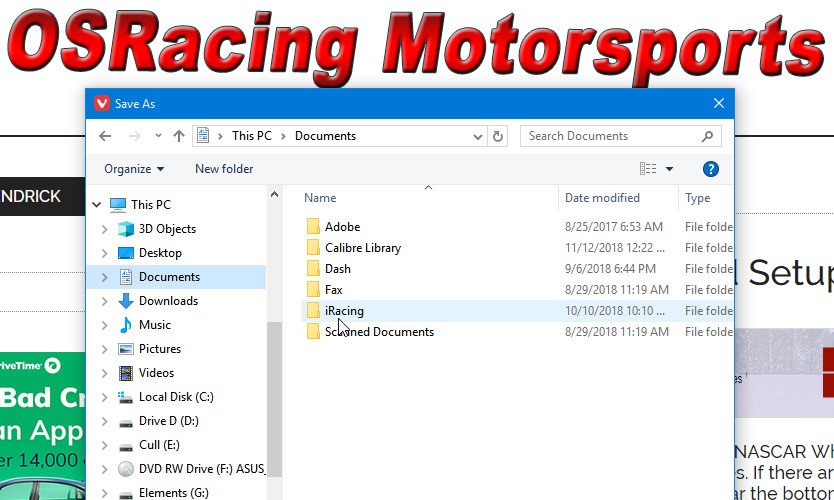
After you open the iRacing folder, you will see a setups folder. Double click it to open.
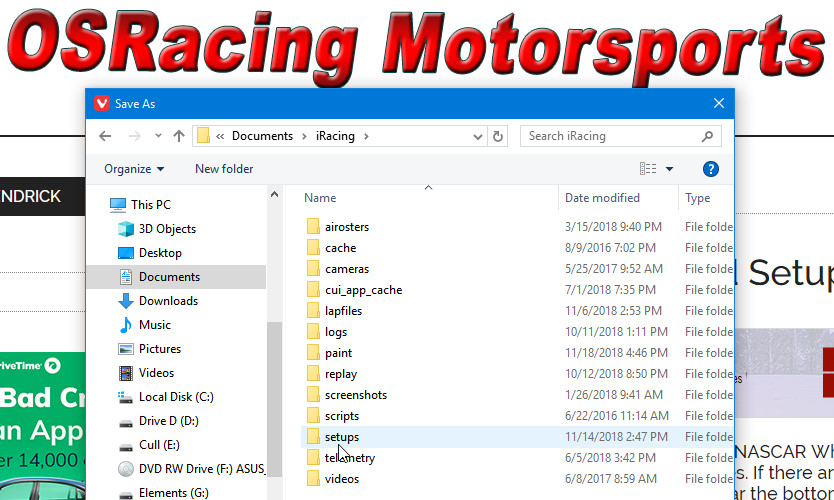
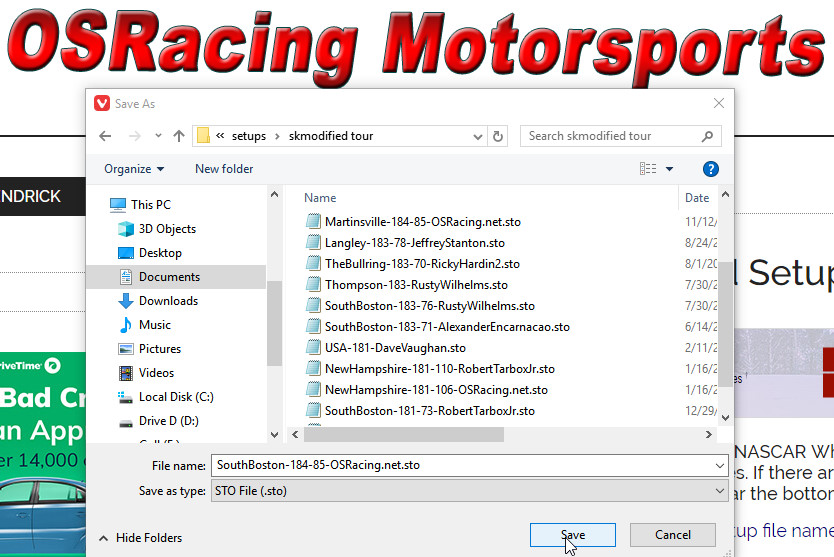
Now we get to the cars folders. Here you want to find the correct folder for the setup. In this example, I’m downloading a Whelen Tour Modified setup. The correct folder for this setup is called ‘skmodified tour.’ It’s pretty easy to figure out which folder is the correct one. When you find the correct folder, double-click to open it.
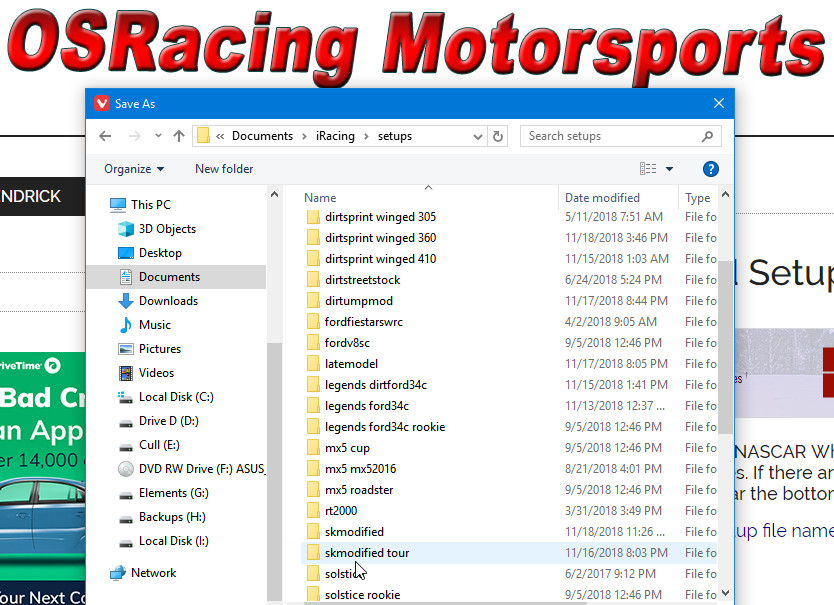
Now it’s a simple matter of saving the setup file to the folder you just opened, so click ‘Save’ as shown below.
Now open the iRacing simulator. Click ‘Garage’. Click ‘My Setups’. Find the setup you downloaded and double-click to open it.
Summary
- Find a setup to download.
- Click to download the setup.
- In the Download Save As dialog box, navigate to Documents\iRacing\setups\<carname>.
- Save the setup.
- Open the iRacing simulator, click Garage, then click My Setups. Click the setup you want to open.
I prefer text and picture tutorials. If you prefer videos, here’s a brief video by Alexander Sheridan that explains the process. In this video, Alexander saves the setup file to his default download folder then moves it to the correct location. Keep in mind that you can save a couple of steps by downloading the setup file directly to the correct folder.
If you have any questions, visit us in Discord.
Leave a Reply