• Skip to main content
  • Skip to secondary menu
  • Skip to primary sidebar

Old School Racing

iRacing Setups and Resources • Dirt & Asphalt Oval Racing News

  • Get iRacing Setups
  • iRacing Driving Tips
    • iRacing Rookie Tips
      • Tips for Surviving the iRacing Rookie Series
      • iRacing Dirt Career Paths for Rookies (and Beyond)
      • iRacing Rookie Guide Part 1
      • iRacing Rookie Guide Part 2
      • iRacing Rookie Tip: Stop The Car
      • iRacing Rookie Tips: Getting Started and Moving Up
      • iRacing Savvy – Develop Your Racecraft
      • Surviving The iRacing Rookie Series
    • Virgil Graham Slide Job Video
  • iRacing Quick Tips
  • iRacing Setup Help
    • How to Adjust iRacing Asphalt Legends Car Springs and Cross Weight
    • How to Adjust iRacing Sprint Car Cross Weight AKA Wedge
    • How to Make an iRacing Sprint Car Qualifying Setup
    • iRacing Advanced Legends Car Setup Matrix
    • iRacing Asphalt Late Model Stock Car Setup Matrix
    • iRacing Big Block Modified Setup Guide
    • iRacing Big Block Modified Setup Matrix
    • iRacing Dirt Late Model Setup Matrix
    • iRacing Dirt Sprint Car Setup Matrix
    • iRacing Dirt UMP Modified Setup Matrix
    • iRacing Dirt Car Specifications
    • iRacing Dirt Winged Sprint Car Setup Tutorial
    • iRacing Setup Guides
    • iRacing Setup Shop: Tire Stagger
    • iRacing Setup Stagger Chart
    • iRacing Setup Tips for Asphalt Oval Racing
    • NASCAR iRacing Class A Next Gen Cup Car Setup Matrix
    • Quick & Easy Guide: Making an iRacing Dirt 358 Modified Setup
  • iRacing Ton-o-Help
    • Hidden Feature in the iRacing Simulation: DriverRotateHead
    • Hidden Feature in the iRacing Simulation: DriverHeadHorizon
    • How to Automatically Set and Save the Correct Force Feedback For Each Car in iRacing
    • How to Change the Head Rotation Look Angle in iRacing
    • How to Disable Automatic Fast Repair, Tire Changes, and Fuel Fill in iRacing
    • How To Download and Open iRacing Setups
    • How to Improve Your Safety Rating Without the Risk of Racing Against Other Drivers
    • How to Install, Configure, and Use Discord
    • How to Properly Use Custom Car Numbers in iRacing
    • How To Run an iRacing Time Trial
    • iRacing Radio Information
    • Logitech G27 Calibration and Settings for Dirt Rally
    • Logitech G27 Calibration and Settings for iRacing
    • Logitech G29 and G920 Calibration and Settings for iRacing
    • Understanding the Dirt Late Model
  • FREE iRacing Setups

How To Fix Discord Installer Errors on Windows

Most of the time, Discord installs very quickly and easily. Occasionally though, some people encounter issues with its installation. If your Discord installer fails or outputs various errors that prevent the Discord app from installing, the steps outlined below will often rectify the issue.

If you seek a broad array of iRacing setups at prices that actually make sense, you will find
them in our Discord. We keep the selection wide and the costs low, just as they ought to be
.
  1. Find Discord in the system tray and close it. Make sure all Discord processes are terminated. Open Task Manager (right click on the task bar and click Task Manager). Scroll through the list of programs that are currently running on your system. If you see anything that says Discord, right click on it, and select End Task.
  2. Delete these folders:
    %AppData%/Discord
    %LocalAppData%/Discord
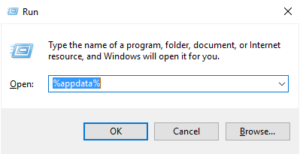
    To find these two folders, right click on the Windows start button, then click Run. Enter the following in the Run window:

    %appdata%

    Fix Discord Windows Installer Errors

    Press Enter or click OK. The %appdata% folder will open. Find the Discord folder inside the %appdata% folder and delete the Discord folder.

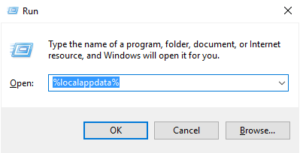
    Now click on the Windows start button again, then click Run. Enter the following in the Run window:

    %localappdata%
    Fix Discord Windows Installer Errors 2

    Press Enter or click OK. The %localappdata% folder will open. Find the Discord folder inside the %localappdata% folder and delete the Discord folder.

    If Windows says the file is in use, you have Discord running somewhere. Open the Task Manager again and make sure you ended all Discord tasks. When you have managed to delete the two Discord folders, continue.

  3. Now restart your system.
  4. Reinstall Discord. https://discordapp.com/api/download?platform=win

Here is something else you can try. Make sure that all instances of Discord are closed as above. Check Task Manager to be sure. Run Discord (%LocalAppData%/Discord/most recent version) as an administrator. Find the app at that location (%LocalAppData%/Discord/most recent version), right click it, and select Run as Administrator. While you’re there, set Compatibility to Windows 7. If that doesn’t work, set Compatibility to Windows 8.

That completely exhausts my knowledge on this topic. If you continue to have issues with Discord installation, you should contact Discord Support.

Primary Sidebar

iRacing Setups are Now
Available Here (OSR Discord)

FREE iRacing Setups are
Available Here (Limited)

Best Bang-For-Buck Entry-Level DD

Moza R5 BundleThe Moza R5 Bundle delivers the best value in entry-level direct drive — 5.5Nm of smooth power at a price that actually makes sense.

OSR Social Links

  • OSR Rumble Racing Videos
  • OSR Youtube Racing Videos
  • OSR Discord
  • OSR Facebook
  • OSR 𝕏

Search

OSR Rumble Racing Videos | OSR Discord | OSR Facebook
© 2026 · Old School Racing Motorsports · Privacy