Introduction: A Promising New Arrival
 DirtSim is still in its early stages of development, but there’s already plenty to get excited about. After spending time with the simulator, exploring its menus, testing its features, and observing the multiplayer experience, one thing has become increasingly clear: this project has the potential to become a major player in the dirt oval racing simulation market.
It’s important to put things into perspective. As of this writing, DirtSim has been in development for only about six weeks. At this stage, a few unfinished features, occasional rough edges, and some unusual behavior are to be expected. There is no announced public release date or development roadmap available yet.
Nevertheless, what’s already in place is impressive, and the development team is moving quickly.
Let’s take a closer look at what DirtSim has to offer.
General Overview: Getting Started
Currently, DirtSim features dirt late models exclusively. I feel confident that additional car types will eventually find their way into the simulator, but for now, the development team is concentrating on refining the late model experience, improving existing tracks, and adding new venues.
That is a sensible approach. Establishing a solid foundation with one car type before expanding the lineup is a much better strategy than spreading development resources too thin.
Speaking of tracks, the game currently has approximately 90 tracks signed. That number has been increasing almost daily, so there’s a good chance it will already be outdated by the time you read this.
One of the things I particularly like about DirtSim is how quickly you can get on track. There is no driving around the pits, navigating pit lanes, or wasting time getting to the starting point. You spawn directly on the track, ready to go.
The entire experience is designed to be accessible. Whether you want to jump into practice, run a single-player race, explore career mode, or join a multiplayer session, getting started is quick and straightforward.
DirtSim is considerably more casual and easier to navigate than iRacing. That doesn’t mean the actual driving is easier, however. The driving challenge is comparable, although the physics and handling characteristics have their own distinct personality.
And here’s perhaps the most important observation: DirtSim is fun.
It’s easy to get into, doesn’t bury you under unnecessary complications, and makes getting out on the track the priority. I feel confident in saying that DirtSim has the potential to become a major competitor to iRacing’s dirt oval discipline.
The Launcher: Your Gateway to DirtSim
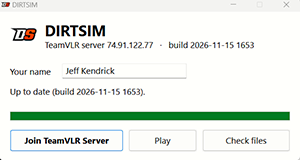 DirtSim begins with its own launcher, which serves as the starting point for the entire experience.
When launched, the software first checks for updated files. At this stage of development, updates are appearing almost daily as the team continues making changes, improvements, and additions.
Once the update check is complete, you have two primary options:
- Join TeamVLR Server: Takes you directly into the multiplayer experience.
- Play: Opens the simulator, where you can use the in-game menus to select practice, career mode, single-player racing, or multiplayer options.
It’s a simple arrangement that gets you where you want to go without unnecessary fuss.
The Main Menu: Simple on the Surface, Extensive Underneath
Let’s take a passing look at the main menu and some of the features available.
At first glance, navigation is straightforward. The various sections are logically organized, and finding your way around doesn’t require a manual. However, there’s considerably more going on beneath the surface than you might initially expect.
Home
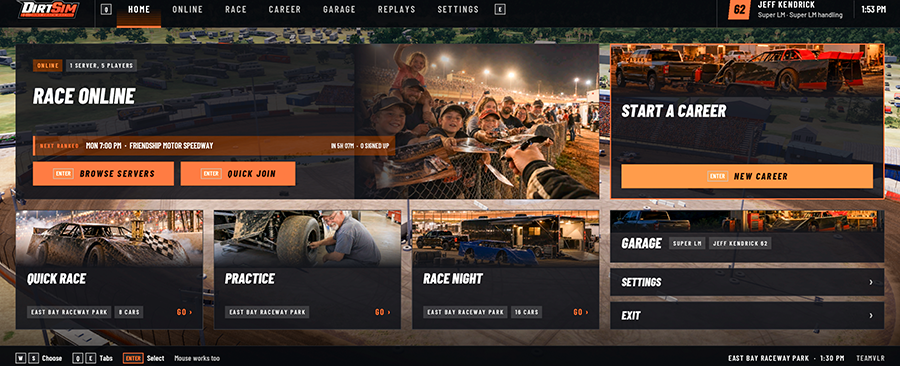 Home is the first option in the menu and the screen you’ll land on when you initially enter the simulator.
From here, you can browse available online servers. Typically, you’ll find a TeamVLR server occupied by drivers looking for casual multiplayer racing. This is a fantastic idea by the development team, and there are generally people in there racing for many hours throughout the day.
The Quick Join option makes getting into an available session particularly easy.
You can also access Career Mode, along with other single-player options and features, directly from the home screen.
Online
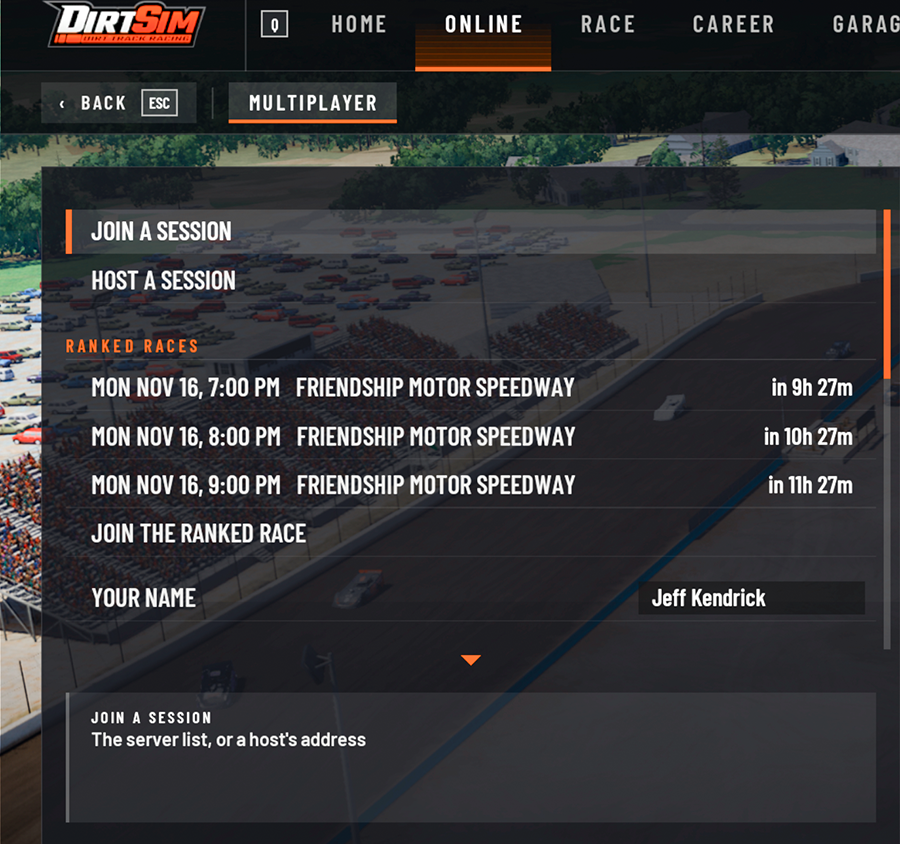 The Online menu provides access to scheduled, ranked races.
Selecting an event brings up a list of available options, allowing you to join the session and practice at any time before the scheduled race begins.
This gives drivers an opportunity to get familiar with the track and prepare before the competition starts.
Race
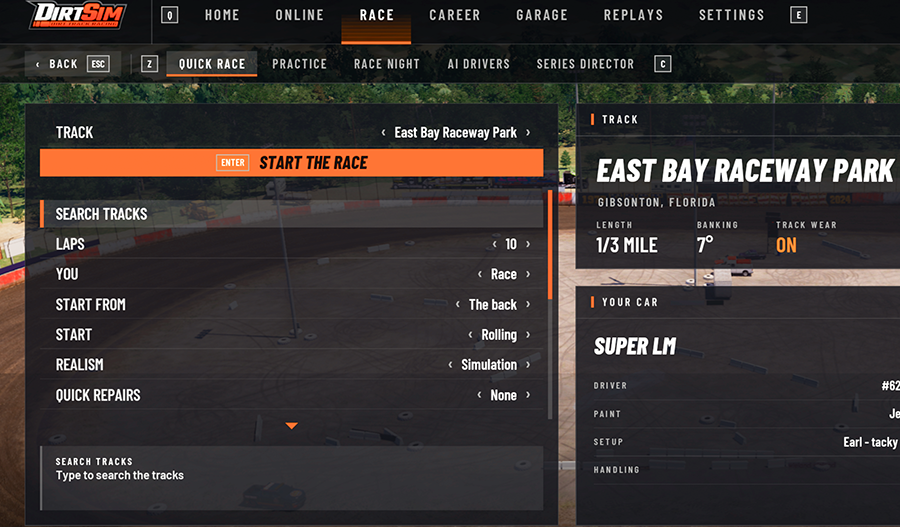 The Race menu contains several single-player options, including:
- Quick Race
- Practice
- Race Night
- AI Drivers
The AI Drivers section allows you to configure the artificial intelligence competitors you’ll be racing against in single-player sessions.
There are enough options here to accommodate different preferences and racing experiences.
Career
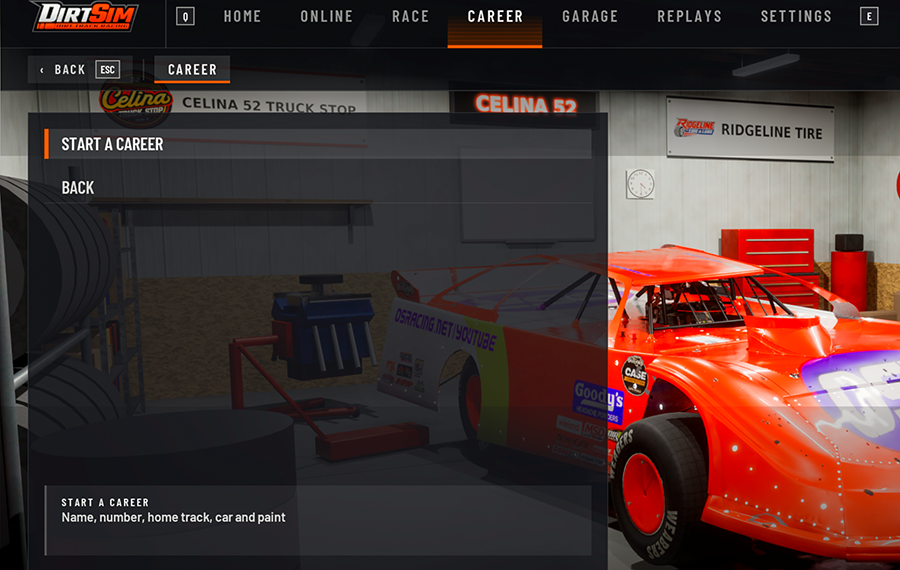 Next is the Career menu, where you can access the game’s career-oriented racing experience.
Garage: Paints and Setups
Now we’re getting into some interesting territory.
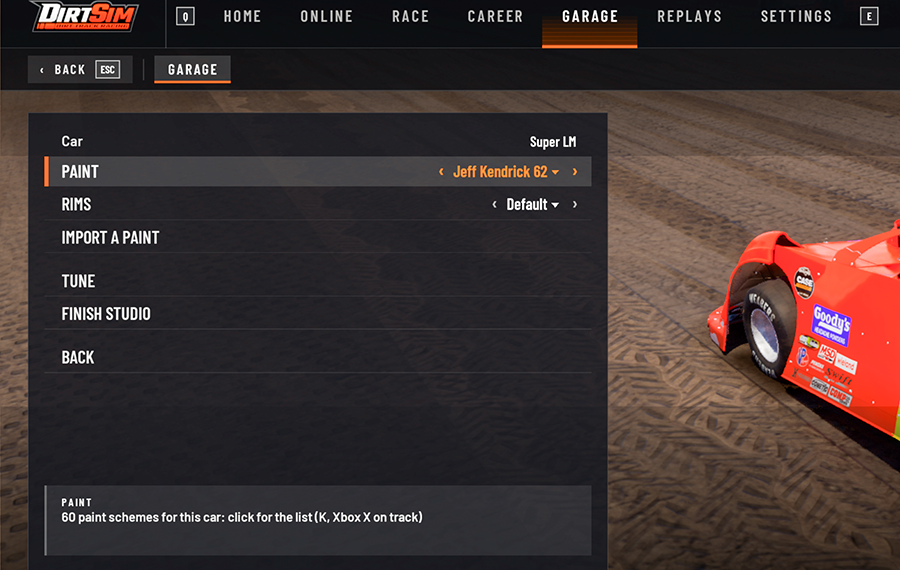 The Garage is where you can customize your car, both visually and mechanically.
The paint section allows you to create and customize your car’s appearance. There’s also an option to import your existing iRacing paint schemes directly into DirtSim.
I tried this feature, and the process is smooth and seamless. You won’t need to maintain a separate Trading Paints account to bring your existing iRacing paint into the simulator. It’s a particularly convenient feature for drivers who have already invested time in creating their own paint schemes.
But the Garage has another feature that deserves considerably more attention: the Tune option.
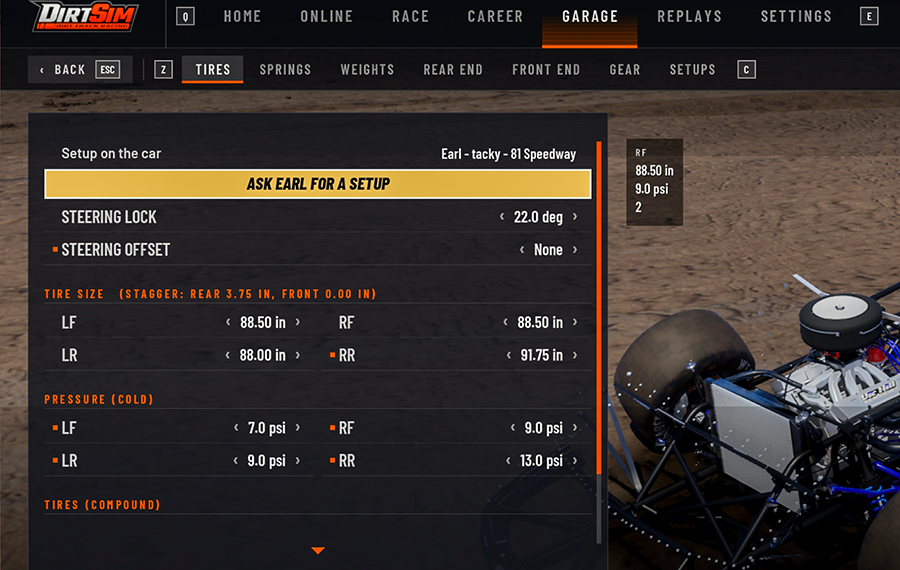 Here, you can make your own adjustments to the car setup. The various adjustment categories are organized in the submenu across the top, giving you access to the different components of the setup.
Or, if you’d rather let somebody else handle the mechanical engineering, you can simply ask Earl for a setup.
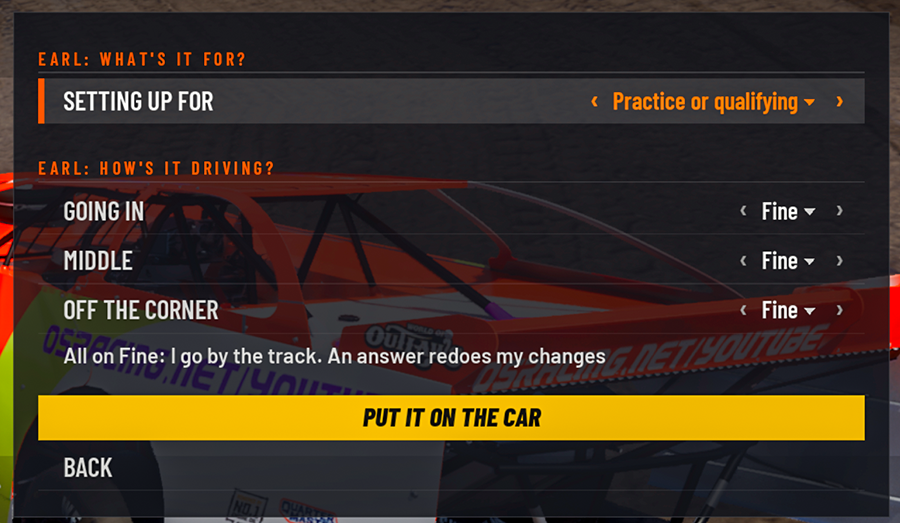 Clicking the Earl option brings up a separate setup screen. From here, you select whether you want a setup for practice/qualifying, or racing. Click Put It on the Car, and you’re ready to go.
But it gets better.
If the car doesn’t handle quite the way you like, you can return to Earl and make adjustments using the options for Going In, Middle, and Off the Corner. Tell Earl what you want the car to do differently, and he’ll make the appropriate setup adjustments.
Click Put It on the Car again, and you’re done.
This is one of the most innovative and ingenious setup tools I’ve encountered in a racing simulator. It removes much of the guesswork and mechanical complexity that can make setting up a dirt late model such a chore.
And frankly, it already makes iRacing’s setup situation look rather antiquated.
Replays
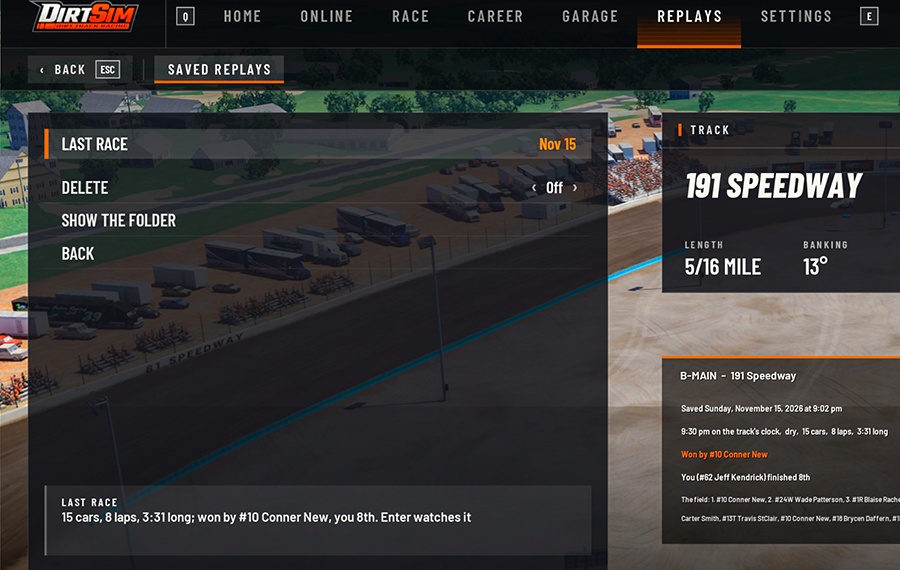 The Replays menu is fairly self-explanatory. It provides access to recorded sessions and the tools for reviewing your racing action.
We’ll take a closer look at those features later.
Settings
Last but certainly not least is the Settings menu.
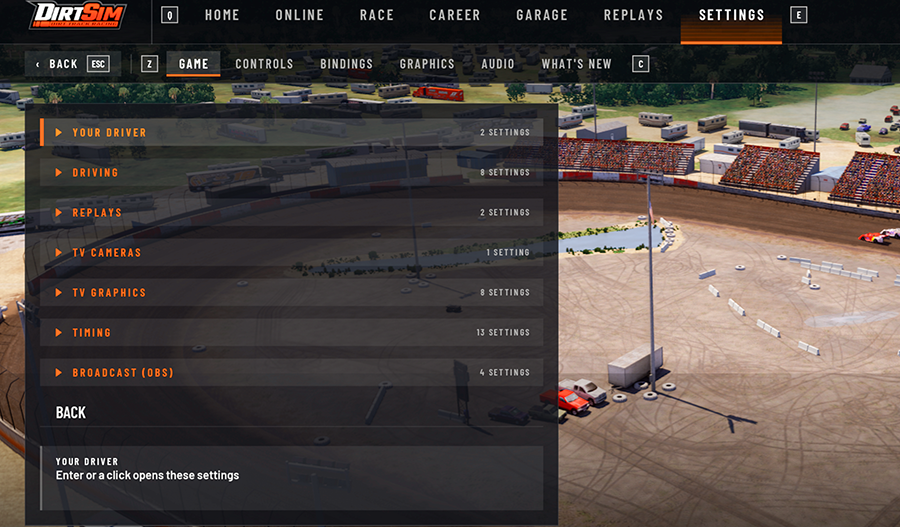 This is where you’ll find the bulk of the simulator’s configuration options, including:
- Graphics settings
- Audio settings
- Controller configurations
- Key bindings
- Additional gameplay and simulator settings
There’s considerably more here than can reasonably be covered in a single review.
A Word About the Menus
We could easily spend considerably more time exploring each of these sections, but that isn’t the purpose of this review.
I did, however, want to demonstrate that DirtSim isn’t a simulator with a handful of basic options and a simple interface.
Day-to-day navigation and operation are remarkably straightforward. But when you want to get under the hood, configure your equipment, adjust your preferences, or make more significant changes to the simulator, the options are there.
There’s far too much available to cover in this review, and that’s a good problem to have.
Driving Physics, Tire Behavior, and Track Surface Modeling
This is where things get particularly interesting.
At first glance, DirtSim’s late models might look quite similar to their counterparts in iRacing. After all, they’re both modeled after the same general type of race car, so some similarities in appearance and basic behavior are inevitable.
But spend a little time behind the wheel, and you’ll discover that the two experiences are quite different.
Early beta testing highlights a heavy emphasis on realistic track degradation, dry-slick conditions, and demanding throttle control. Managing grip through the corners and controlling wheel spin down the straightaways require deliberate pedal and steering inputs.
The cars feel like they’re actually in the dirt rather than simply sliding around on top of it.
That’s an important distinction.
Driving and handling are challenging, and the track surface changes considerably throughout a race. As cars circulate around the track, a slick groove begins developing in the areas receiving the most traffic. Grip diminishes, throttle control becomes increasingly important, and lap times begin to fall.
The cushion is another particularly interesting aspect of the track modeling.
A realistic cushion develops along the racing surface, and it demands respect. You can’t simply drive into it wherever you please and expect the car to cooperate. Hit it incorrectly, and you could find yourself heading toward the back of the field in a hurry.

Logitech G920 Driving Force Racing Wheel & Pedals
This serves as a no-nonsense entry into realistic driving. Dual-motor force feedback delivers honest steering weight and road detail, while the sturdy floor pedals offer progressive braking and smooth throttle. Stainless steel paddle shifters, a leather-wrapped rim, and a full 900-degree rotation create a setup that earns its spot on your rig without needless extras. It works cleanly with Xbox Series X|S, Xbox One, and PC.
Buy on AmazonAffiliate link • Ships fast from Amazon
The changing surface conditions create a dynamic racing environment that requires drivers to continually adapt their approach.
In my assessment, the surface modeling already surpasses what we’re accustomed to seeing from the main competitor, iRacing. And remember, we’re looking at an early closed beta with only a few weeks of development behind it.
That’s an encouraging accomplishment.
Car damage also looks realistic, adding another layer of visual authenticity to the overall experience.
Graphics, Sound, and Immersion
The graphics are excellent.
DirtSim does a very good job of drawing you into the experience and making you feel as though you’re sitting inside an actual race car. The cars, tracks, and surrounding environments contribute to an impressive visual presentation.
One thing I particularly appreciate is that the tracks have character.
That’s critically important in dirt racing. Dirt tracks aren’t supposed to look like interchangeable pieces of pavement with a layer of brown paint applied. Each venue should have its own personality, and the visual presentation needs to reflect that.
DirtSim is already doing a very good job in this department.
The sound is adequate at this stage, although I think there’s room for improvement. Given how early the development process is, it’s reasonable to expect that the audio will receive additional attention as development continues.
Replays and Photo Mode: Plenty of Tools for Capturing the Action
The replay system is already in place and offers a collection of useful tools for reviewing races, capturing screenshots, and producing video content.
 The basic replay controls are simple and straightforward. While viewing a replay, clicking anywhere within the replay screen pauses playback. Click again to resume.
You can also press P to capture a screenshot while in replay mode.
But there’s considerably more available than simply watching a race over again.
Photo Mode
Motion blur is disabled in the standard replay view but becomes available when using Photo Mode.
You can enter Photo Mode by clicking the Photo button or pressing P.
One of the available controls is the shutter button, which allows you to adjust the camera’s shutter speed.
There are several options, and the results can make a significant difference in the appearance of your photographs.
- Slower shutter speeds: Produce more motion blur around and behind the car, creating a sense of speed and movement.
- Faster shutter speeds: Reduce or eliminate motion blur, producing a sharper image of the car and surrounding action.
It’s a nice addition for anyone interested in capturing screenshots for social media, websites, or other uses.
Phone Camera
The Phone button simulates a spectator in the grandstands recording the action with a cellphone.
Clicking the button opens a menu of available options.
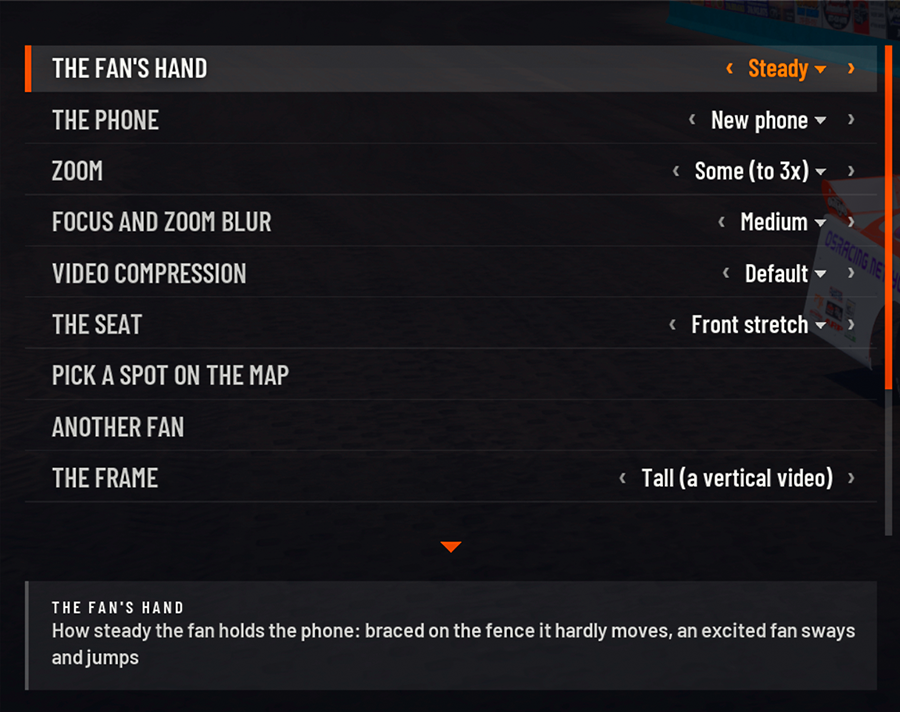
After configuring your preferences, scroll farther down the menu and click Film It.
The simulator then produces the requested cellphone-style recording.
It’s an interesting feature that adds another way to capture and share the racing experience.
Video Export
The Export button allows you to export replay footage in MP4 format.
That makes the resulting video suitable for streaming platforms, websites, social media, and other uses.
For content creators, this is a particularly useful feature.
Highlights
The Highlights button automatically creates a one-minute highlight reel from a race session.
There is one limitation worth mentioning: this feature does not work with practice sessions.
Camera Shot Selection
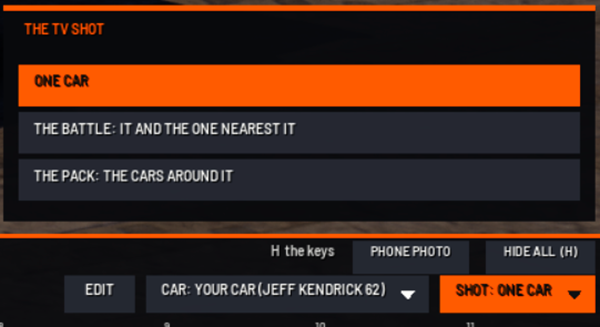 The Shot dropdown menu provides several options for directing the replay camera.
You can choose to focus on:
- Your own car.
- A nearby racing battle.
- The overall pack of cars surrounding your vehicle.
This gives you some flexibility in how you present the action, whether you’re interested in reviewing your own performance or capturing the broader racing action.
Taken together, the replay and photo tools offer a surprisingly comprehensive collection of features for an early beta.

Logitech G923 Racing Wheel & Pedals
One of the most popular entry-to-mid level sim racing wheels available today. The G923 delivers strong TRUEFORCE feedback up to 1000 Hz that lets you feel the road with refreshing clarity, a responsive brake pedal with progressive spring, and a solid set of pedals built for consistent control. It includes a programmable dual-clutch launch system for cleaner starts, a genuine leather-wrapped wheel, and straightforward compatibility with PC, Xbox Series X|S, and Xbox One.
Buy on AmazonAffiliate link • Ships fast from Amazon
Multiplayer: Where the Racing Comes Together
[Multiplayer images]
Multiplayer is already shaping up to be one of DirtSim’s strongest features.
One particularly good decision by the development team concerns server administration.
The first player to enter a server is automatically assigned administrator privileges. I think this is an excellent idea. Every multiplayer server needs someone capable of managing the session, and automatically assigning that responsibility eliminates the need to have a separate administrator present before racing can begin.
If you’re hosting a session and want to make changes, simply press Escape and select Run Session (Host).
Basic operations, such as changing tracks, are simple, quick, and seamless.
But the host configuration options go considerably deeper than that.
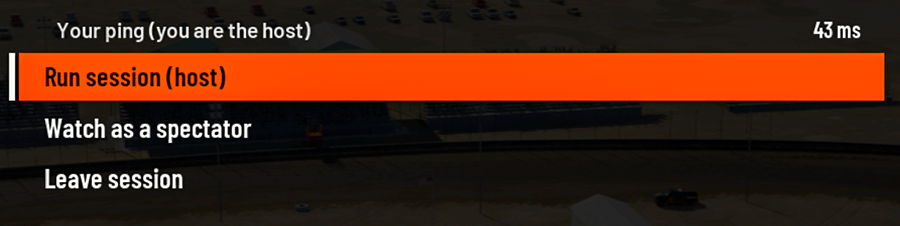 The Host menu provides an extensive collection of settings that allow the administrator to configure virtually every aspect of a session, including:
- Race format.
- Track wear rate.
- Cushion settings.
- Dust settings.
- Numerous additional session parameters.
There’s a considerable amount of control available to the person hosting the event, allowing sessions to be configured to suit different racing preferences and conditions.
I’ve also spent time spectating multiplayer races, and what I’ve seen is encouraging.
Actual racing is already happening. Side-by-side competition is very much possible, and drivers are demonstrating that the multiplayer experience can deliver the kind of close racing that dirt oval enthusiasts expect.
I’ve also heard plenty of positive feedback from the drivers who are regularly competing in these sessions. Those actively participating in multiplayer races have been singing the praises of the experience.
That’s an important early indicator. A racing simulator can have impressive graphics and sophisticated physics, but without enjoyable competition and an active multiplayer community, it’s missing a substantial part of what makes sim racing worthwhile.
DirtSim appears to be making good progress on that front.
Final Thoughts: A Very Promising Start
It’s important to remember what we’re looking at here. DirtSim is an early closed beta, with only about six weeks of development behind it at the time of this writing.
There are unfinished features, areas that will undoubtedly receive additional attention, and plenty of development work still ahead.
But there’s also a lot to like.
The simulator offers an approachable interface, quick access to racing, impressive track surface modeling, challenging driving physics, an ingenious setup assistant, extensive replay tools, and a multiplayer environment that is already demonstrating considerable promise.
Perhaps most importantly, it’s fun to drive.
I came away from my time with DirtSim impressed by both the direction of the project and the development team’s approach. They’re concentrating on the fundamentals, refining the late model experience, improving the tracks, and building an environment that makes it easy for people to get together and race.
I wouldn’t suggest that DirtSim has already replaced iRacing. That’s a conclusion that would be premature at this stage. But I will say that the potential is there, and some of what I’m seeing already gives the established competition reason to pay attention.
Six weeks into development, DirtSim has given us plenty of reasons to be optimistic.
And if this is what the team can accomplish in the opening weeks, I’m certainly interested in seeing where they take it from here.
The dirt oval sim racing landscape could be in for some interesting competition.
Leave a Reply